
Exporting and Supported File Formats
Once a prescription map is created and saved, it can be exported from Solvi in several file formats compatible with a wide range of agricultural machinery and software platforms.
These export options ensure that your variable-rate application maps can be used directly in the field with minimal additional setup.
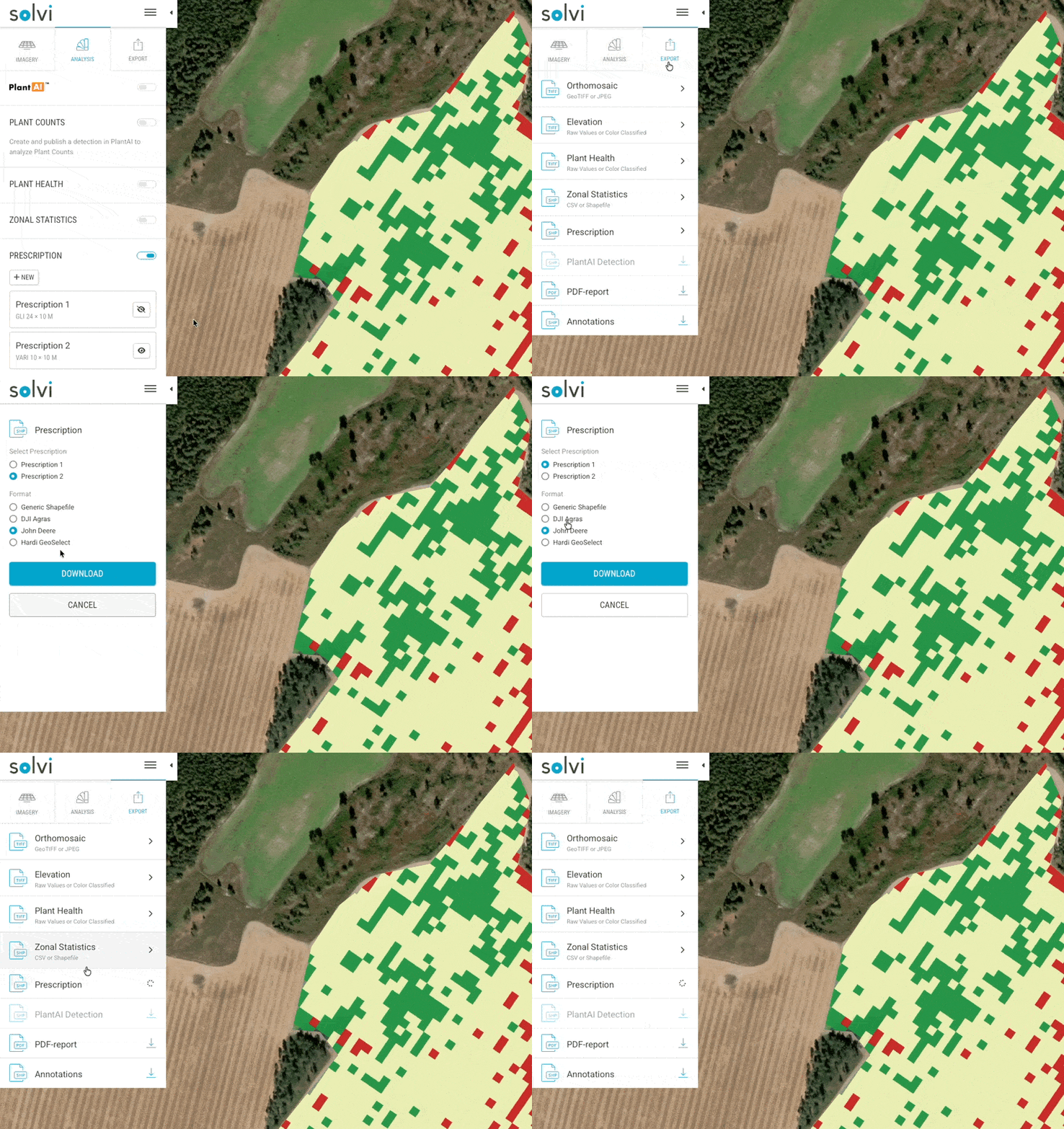
Exporting a Prescription
To export a completed prescription:
- Open the relevant Upload and navigate to the Export tab.
- Select the Prescription section in the sidebar.
- Choose the desired file format and click Download.
The exported file can then be transferred to the equipment controller or imported into a farm management system for use during field operations.
Supported File Formats
The Prescription Tool supports several export formats compatible with a wide range of agricultural machinery and software systems. Each format preserves spatial grid geometry and assigned rates, allowing seamless integration with most variable-rate application hardware.
| Format | File Extension(s) | Compatible Equipment / Software | Notes |
|---|---|---|---|
| Generic Shapefile | .shp , .dbf , .shx , .prj |
Universal format supported by most variable-rate spreaders, sprayers, and GIS platforms | Recommended for general use when no specific equipment brand is required. |
| John Deere | .shp (Deere-specific attributes) |
John Deere GreenStar™, Operations Center™ | Structured for direct import; uses WGS84 coordinate system. |
| DJI Agras | .tif |
DJI Agras agricultural drones | Exported as GeoTIFF raster map where pixel values represent application rates. Compatible with DJI Terra and DJI Agras flight planners. |
| Hardi GeoSelect | .tif |
Hardi GeoSelect sprayers | GeoTIFF-based prescription compatible with Hardi terminals for precise section control and rate modulation. |
File Structure
Each exported file includes:
- The grid geometry or raster cells representing prescription zones.
- The assigned application rates per zone or cell.
When using Shapefiles, keep all associated files (.shp , .dbf , .shx , .prj ) together in the same folder.
For TIFF-based formats, ensure the exported GeoTIFF remains uncompressed and retains its spatial reference (WGS84).
Recommendations by Use Case
| Application Type | Preferred Format | Reason |
|---|---|---|
| Fertilizer application in broadacre crops | Generic Shapefile or John Deere | Supported by most spreaders; ensures full field coverage. |
| Fertilizer optimization in specialty crops | Shapefile | Ideal for precision row-crop equipment with fixed boom widths. |
| Spot spraying or drone-based herbicide application | DJI Agras (TIFF) | Allows direct import into DJI flight software for aerial VRA missions. |
| Precision spraying with Hardi sprayers | Hardi GeoSelect (TIFF) | Optimized for Hardi terminals with built-in GeoSelect rate mapping. |
Transferring the Files to Machinery
After downloading the exported file, you can transfer it to your equipment controller using one of the following methods:
- USB drive or SD card — Copy the exported folder and insert it into the equipment terminal.
- Wireless upload — For cloud-connected systems such as John Deere Operations Center™, upload directly via your account.
- Third-party software — Import into a compatible platform for further configuration before transfer.
Ensure that:
- The coordinate system (WGS84) matches your equipment setup.
- The field boundaries and grid orientation align with the actual field geometry and driving direction.
Best Practices
- Verify the exported file in your equipment or VRA software before field application.
- Keep consistent file naming conventions (e.g.,
FieldName_Crop_Year_Prescription). - Store exported prescriptions in an organized folder structure for traceability.
- Re-export prescriptions if any changes are made to rates or classes.
Exporting prescriptions correctly ensures that your application maps are accurate, compatible, and ready for seamless use in the field.